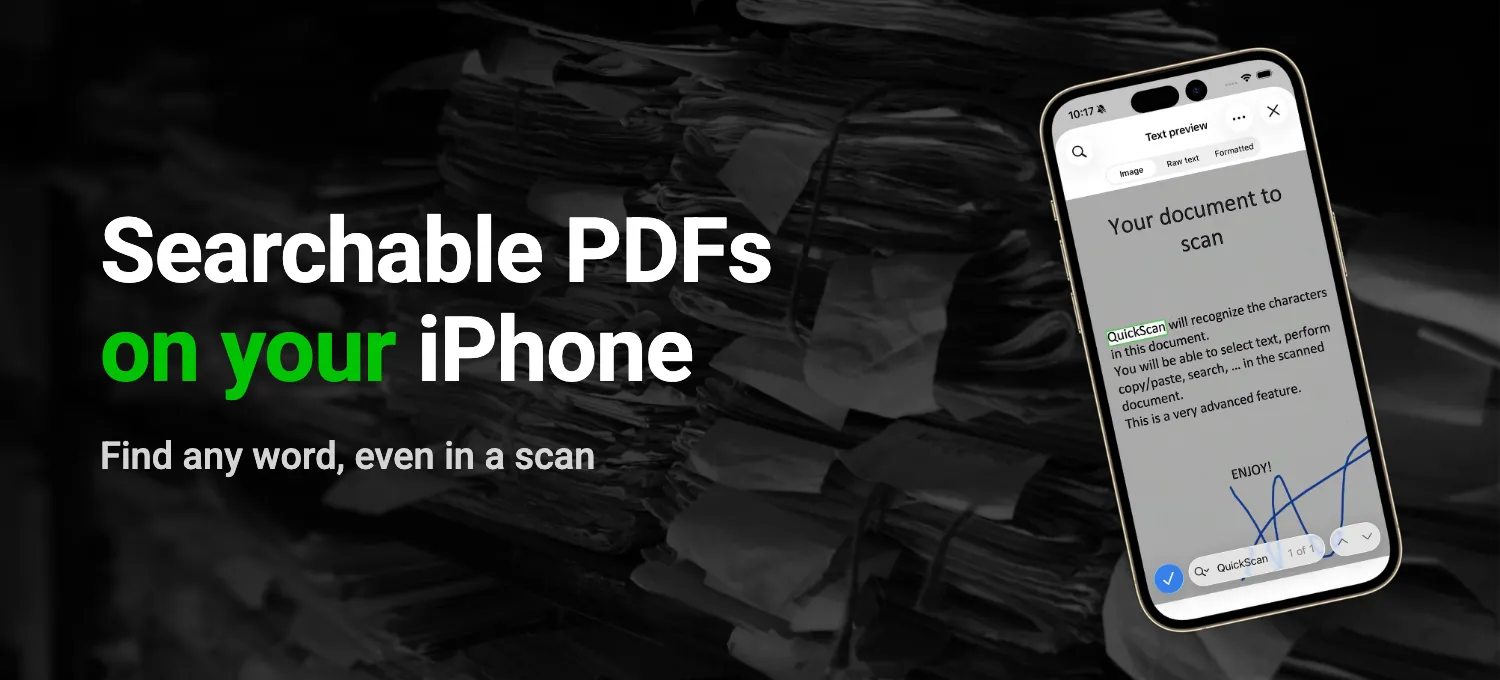
When you moved in, your landlord emailed you the lease as a PDF: 14 pages, scanned on an office copier. A year later you need the part about the security deposit, so you open the file and search for "deposit". Nothing. To your iPhone, those pages are pictures, and a picture of a word isn't something it can search.
A searchable PDF looks exactly the same, but it has the text tucked away under each page, so you can search it, select a sentence and copy it. Getting that text out of the page images is called OCR, short for optical character recognition. Since iOS 27, the Preview app on the iPhone can do it, and so can Preview on the Mac.
Is your PDF already searchable?
Search for a word you can see on the page. If the search finds it, the text is already there. If it finds nothing, the PDF is just images of pages and needs OCR.
Make a PDF searchable in Preview on the iPhone
You need iOS 27. Preview shows the PDFs you keep in Files, in iCloud Drive or on your iPhone. If the lease is still sitting in your email, save the attachment to Files first.
- Open Preview, tap Browse and open the PDF.
- Tap the Actions Menu button next to the file name, then Export.
- Choose PDF and turn on Embed Text.
- Tap the Done button, choose where to save the new PDF, rename it if you like and tap Save.
Open the new file and search for "deposit" again to check that it worked.
On a Mac
Preview on the Mac has the same option. Open the PDF, choose File > Export, select Embed Text and click Save. If there's no Embed Text option, the PDF already has its text.
Where Preview stops
On iOS 26, Preview doesn't have Embed Text yet, so you need iOS 27 or another app. Even on iOS 27, OCR is an extra step after the fact. You go through Export once for every PDF, and each time you choose the folder and the name yourself.
Or you use a website that runs OCR on PDFs, which means uploading your lease, signature and all, to someone else's server.
Searchable PDFs with QuickScan
With Preview, every PDF goes through the same routine: Browse, open the PDF, Actions Menu, Export, PDF, Embed Text, Done, pick a folder, Save.
In QuickScan, OCR is part of the export, and you don't need iOS 27 for it. Turn on text recognition (OCR) in Settings, and from then on every scan and every imported PDF comes out searchable when you export it, with no second pass.
A PDF you already have goes in through Import, then PDF or images from Files. For a whole folder of old scans, pick them all at once when you import and keep them as separate documents. Then select them in QuickScan and export them in one go with Export as separate PDFs.
The recognition runs on your iPhone, without an internet connection, and it has dictionaries for 27 languages, from German and French to Japanese and Arabic. QuickScan detects the language on its own, and you can also choose it yourself to make the recognition more accurate.
You can also see what it found. The text preview shows the recognized text, and Copy text puts it on the clipboard, which is handy when you want to quote a clause to your landlord. If you only need the words, export them as a TXT file. And QuickScan's own search finds a document by any word in it, so next year you just type "deposit".
With an Export Favorite, the searchable PDF gets a name in the format you've set up and goes straight to its folder, in iCloud Drive or on your NAS.
QuickScan is free for personal use, with no ads, no account and no subscription. And it doesn't have a server of its own that your lease could end up on.

Continue reading:
- How to Make a PDF on iPhone (and Convert Photos to PDF)
- How to Scan Documents on iPhone (and a Faster Way)
Sources: Apple Support, Export or compress PDFs and images in Preview on iPhone, Open and view PDFs and images in Preview on iPhone and Embed text in a PDF (Preview User Guide for Mac) (checked November 2026).