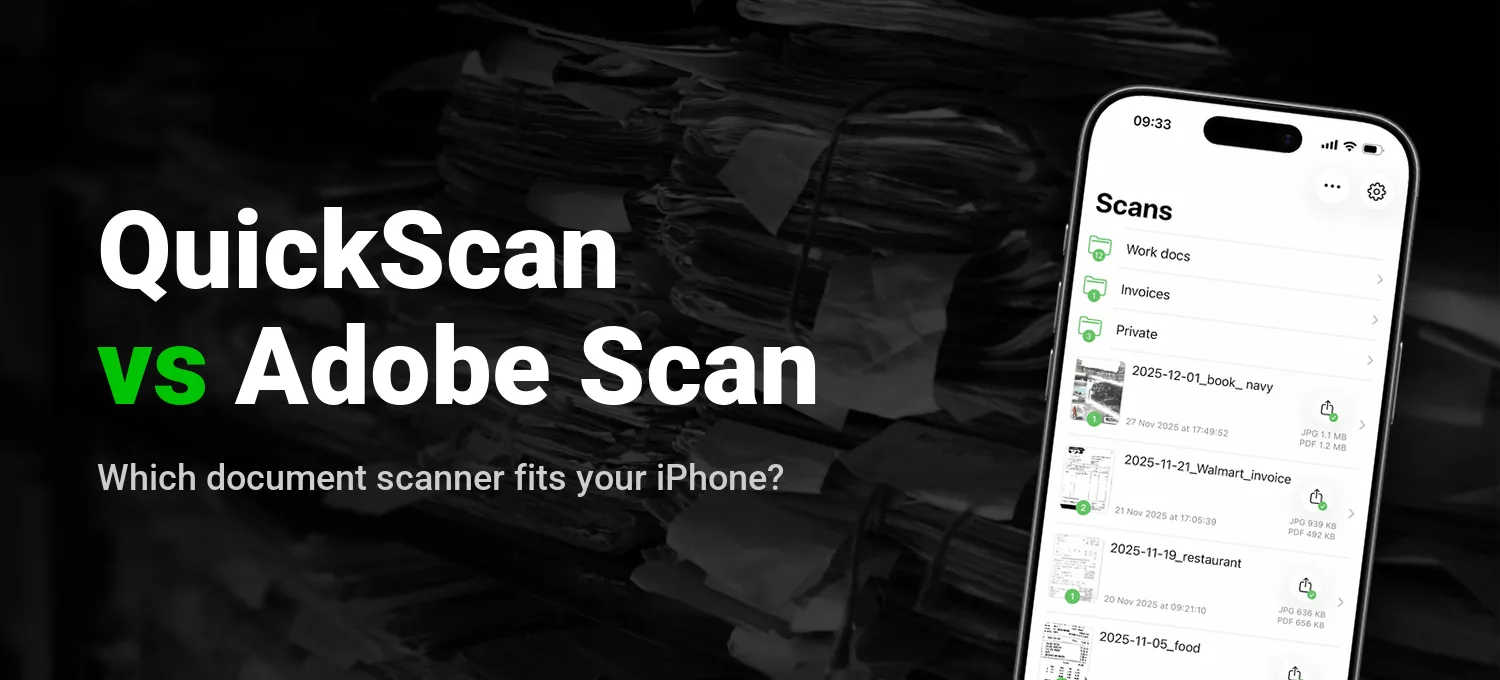
Adobe Scan is one of the best-known scanner apps on iPhone, with about 1.6 million ratings on the US App Store. It's free to start, has no ads and comes from a trusted name. But it's built around Adobe's cloud: it asks you to sign in, and every scan is saved to Adobe Document Cloud. If you're looking for an Adobe Scan alternative on iPhone that needs no account and keeps your documents on your device, here's how QuickScan compares.
The facts about both apps come from their App Store listings and Adobe's own documentation, checked in September 2026. Prices are for the US App Store.
QuickScan vs Adobe Scan at a glance
| QuickScan | Adobe Scan | |
|---|---|---|
| Price | Free for personal use (optional donations). Businesses: QuickScan Enterprise, one-time purchase | Free basic version. Premium subscription for more features (from $9.99 a month) |
| Ads | None | None |
| Account | None needed | Sign-in with an Adobe, Google, Facebook or Apple account |
| App Store privacy label | "Data Not Collected" | Includes "Data Used to Track You" (identifiers), plus data linked to you such as contact info, your content and search history |
| Where your documents go | They stay on your device. No server, works offline | Saved to Adobe Document Cloud automatically |
| Text recognition (OCR) | Yes: on-device, searchable PDFs, more than 25 languages | Yes, with a network connection and Adobe's cloud. Premium raises the limit from 5 to 100 pages |
| Export formats | PDF (searchable), JPG, TXT, Excel, CSV | PDF, JPG. Word and other formats with Premium |
| Cloud destinations | iCloud Drive, Dropbox, Google Drive, OneDrive, SharePoint, WebDAV, SMB/NAS, Nextcloud, pCloud, Paperless-ngx, email, automatically after each scan if you want | Adobe Document Cloud (5 GB free, 20 GB with Premium). Other apps through the share sheet |
| Signatures | Yes (finger, Apple Pencil or imported) | In a separate app (Acrobat Reader) |
| Protection | Face ID / Touch ID app lock, password-protected PDFs | Password-protected PDFs with Premium |
| Platforms | iPhone and iPad | iPhone, iPad and Android |
Privacy: the biggest difference
QuickScan works entirely on your iPhone or iPad. Scanning, text recognition and file processing happen on the device, with no server, no account and no internet connection needed. Its App Store privacy label reads "Data Not Collected".
Adobe Scan works the other way around. Its App Store listing says that "scans are automatically saved to Adobe Document Cloud", and Adobe's guide adds that text recognition requires a network connection and a connection to Adobe's cloud storage. Its privacy label lists identifiers as data used to track you, and links more data to your identity: contact info, purchases, your content, search history, usage data and diagnostics.
Cloud sync is handy if you want your scans on every device. But your scans are often the most private files you own: contracts, invoices, medical records, ID documents. With QuickScan, they never reach a server unless you decide to export them, and then they go to the storage you choose.
What about Adobe's terms of use?
In June 2024, an update to Adobe's terms of use caused an outcry: many users read it as allowing Adobe to access their files and use them to train its AI. Adobe said it had never trained generative AI on customer content, and it rewrote its terms. The current terms promise not to use your files to train generative AI models. They also say that content stored on Adobe's servers may be scanned automatically for illegal material, as is common for cloud services.
Those rules apply to your scans because they're stored in Adobe's cloud. With QuickScan, the question doesn't come up: your scans stay on your device.
Price: free vs Premium
QuickScan is free for personal use, with every feature included: no ads, no subscription, no limits. Optional donations support its development. Businesses use QuickScan Enterprise, a one-time purchase ($79.99) available through Apple Business Manager.
Adobe Scan is free for basic scanning. Its Premium subscription (from $9.99 a month on the US App Store) adds features such as combining and compressing files, password protection, export to Word and other formats, text editing in scans, and a higher text recognition limit. The App Store listing shows in-app purchases from $3.99 to $69.99.
Where QuickScan stands out
1. No account, no cloud
Open the app and scan. There's nothing to sign up for, and your documents stay on your iPhone or iPad until you export them. Scanning and text recognition work offline too.
2. Automation
QuickScan can name your scans automatically (date, title, issuer and more) and export them the moment you finish scanning. With Export Favorites, each destination keeps its own settings: format, colors, file name. Start a scan from a Home Screen or Lock Screen widget, Control Center, the Action button or Siri, and your document is filed in seconds.
3. Your documents go to your own storage
Adobe Scan saves to Adobe Document Cloud. QuickScan sends your scans straight to the storage you already use: iCloud Drive, Dropbox, Google Drive, OneDrive, SharePoint, WebDAV, SMB network shares and NAS, Nextcloud, pCloud or Paperless-ngx. Self-hosted setups work out of the box.
4. Everything is included
Searchable PDFs, password-protected PDFs, signatures in the same app, and printed tables turned into Excel or CSV files: there's no Premium tier to unlock.
Where Adobe Scan is the better choice
Adobe Scan remains a capable app. It may suit you better if:
- You already work with Adobe Acrobat and want your scans synced to your computer, the web or an Android phone. QuickScan is built for iPhone and iPad only.
- You need to save scans as Word documents or edit the text inside a scan (Premium).
- You want its dedicated capture modes, such as book scanning that splits facing pages, business cards saved to Contacts, or ID cards with both sides on one page.
How to switch from Adobe Scan to QuickScan
- Download QuickScan for free from the App Store
- In Adobe Scan, save the documents you want to keep as PDF files, to the Files app or a cloud folder
- In QuickScan, import those PDFs. QuickScan can run text recognition on existing PDFs, so they become searchable
- Create an Export Favorite for your usual destination, so your next scans are filed automatically
- If you no longer want copies on Adobe's servers, delete them from Adobe Document Cloud
Conclusion
Adobe Scan is a solid free scanner and a good fit if you already use Adobe's tools. But it asks you to sign in, saves every scan to Adobe's cloud and keeps many features behind a subscription. If you use an iPhone or iPad and want a scanner that needs no account, works offline and keeps everything on your device, QuickScan is the Adobe Scan alternative to try.
QuickScan is rated 4.9/5 with over 32,000 ratings on the App Store and has been featured by Apple multiple times.
Continue reading:
- QuickScan vs iScanner: Which Document Scanner Should You Use on iPhone?
- Microsoft Lens Alternative for iOS: Why QuickScan Is the Best Replacement
Sources: Adobe Scan on the App Store, the Adobe Scan for iOS guide (troubleshooting, subscriptions) and QuickScan on the App Store (checked September 2026); Adobe General Terms of Use (October 2025); Adobe blog, June 2024.