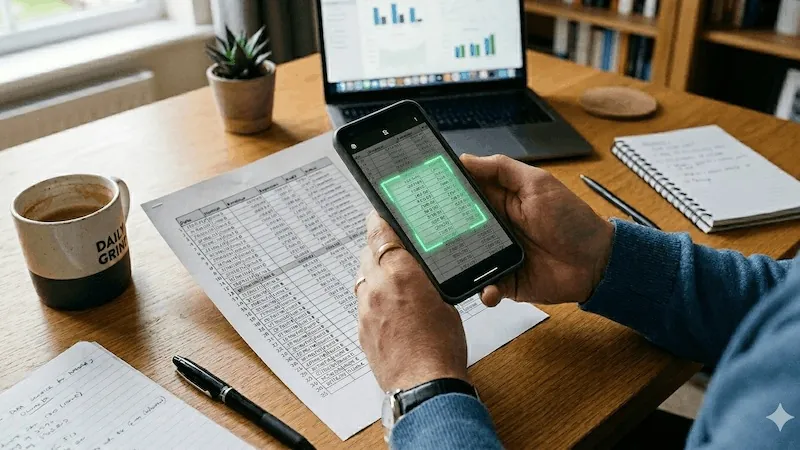
Maybe it's a supplier's price list, a printed bank statement or a table in a report: the data is on paper and you need it in a spreadsheet. Retyping it takes ages, and it's easy to slip on a digit. QuickScan can turn a scanned table into an Excel or CSV file right on your iPhone or iPad.
How it works
QuickScan finds the rows and columns in your scan and writes them into a spreadsheet, without sending anything to a server.
- Scan the page with the table. Edge detection finds the page and straightens it.
- Export it as Excel (.xlsx) or CSV.
- Send the file where you need it: save it to Files, email it, or upload it to iCloud Drive, Google Drive, Dropbox, OneDrive or any other destination QuickScan supports.
Excel or CSV?
Pick Excel (.xlsx) if you want to open the table in Excel, Apple Numbers or Google Sheets and keep working on it. Pick CSV if the data is going into another program, like accounting software or a database: almost everything can import CSV.
What it's good for
- Invoices and receipts: line items, quantities and prices for expense tracking or bookkeeping
- Printed financial documents, like bank statements or balance sheets
- Price lists and product catalogs
- Timetables and schedules
It works best on clearly printed tables. Scan in good light with the page flat, and check the numbers after exporting, especially totals: text recognition is very good, but not perfect.
Why use QuickScan for this
Invoices, bank statements and salary tables are exactly the kind of documents you don't want to upload to someone else's server. QuickScan does the recognition on your device, so the data never leaves it, and it works offline too, on a plane or anywhere without Wi-Fi.
If you scan tables regularly, set up an Export Favorite, for example one that exports as CSV and uploads the file to a folder on Google Drive or your NAS. Start the scan from a widget linked to that favorite, and the spreadsheet is filed as soon as you tap Save.
Table export is only one part of the app: the same scans can also become searchable PDFs, be signed, or be password-protected.
QuickScan is free on the App Store, with no account and no subscription.
Continue reading: