Before your first visit, the dentist's office emails you a new-patient form to fill out and sign. The next week, it's a permission slip for a school field trip. More and more paperwork arrives as a PDF that only needs your signature, and printing it just to sign it and scan it back in is a chore.
You can sign a PDF on your iPhone without installing anything. The built-in tools work, but they have a few weak spots that start to matter once you sign things regularly. A signature drawn with a fingertip rarely looks like your real one, and anyone holding your unlocked iPhone can use it. Here are the steps, and at the end you'll see how QuickScan handles both problems.
Sign a PDF with the iPhone's built-in tools
The steps are the same whether the PDF came by email or is already in the Files app.
- Open the PDF, for example the attachment in Mail. If your iPhone asks, open it in the Files app and tap Save.
- To fill out the form, tap the AutoFill button, tap a blank field and type. If the form has several related fields, your iPhone may offer to fill them all in from your My Card in Contacts.
- Tap the Add button (the plus sign), then Add Signature. Sign with your finger and tap Done.
- Drag the signature to the right spot. To resize it, drag one of the blue dots on its frame.
- When you're done, tap the Menu button, then Export, Print or the Share button to send the document back. To save it, tap the Back button.
Your iPhone keeps the signature for next time. You can save more than one, your initials for example, and delete the ones you no longer need.
Since iOS 26, the iPhone also has a Preview app that works much the same way. Open the PDF form in Preview, tap the Form Filling button to fill in the fields, and use the Add button for the signature.
If someone sends you a Word file instead of a PDF, open it in Pages, which reads Word documents, export it as a PDF and sign that.
Sign a paper document
A paper form has to be scanned first, for example with the Notes app. Open a note, tap the paperclip and choose Scan Documents (all the steps are in How to Scan Documents on iPhone). Then tap the scan in the note, tap the Markup button and the Add button, and choose Add Signature.
The signed scan stays inside the note, though. To send it, you tap the Share button, and to keep it as a PDF in a folder, you choose Save to Files and pick the folder. Every time.
Does a signature drawn on screen count?
For most everyday paperwork, like a consent form or a rental application, it's accepted. Some documents, though, legally require a handwritten signature on paper, and some banks and government offices insist on one or on their own e-signature process. If you're not sure, ask whoever sent you the document.
Where the built-in tools fall short
Apple's tools get a signature onto the page, and that's about it. A signature drawn with a fingertip on glass rarely looks like the one you write with a pen, and at the bottom of a lease it often looks like a scribble. Your saved signatures aren't locked either. Anyone holding your unlocked iPhone can put them on any document. And a paper form takes a detour through the Notes app, where you scan it and sign it before you can send it anywhere.
Signing with QuickScan
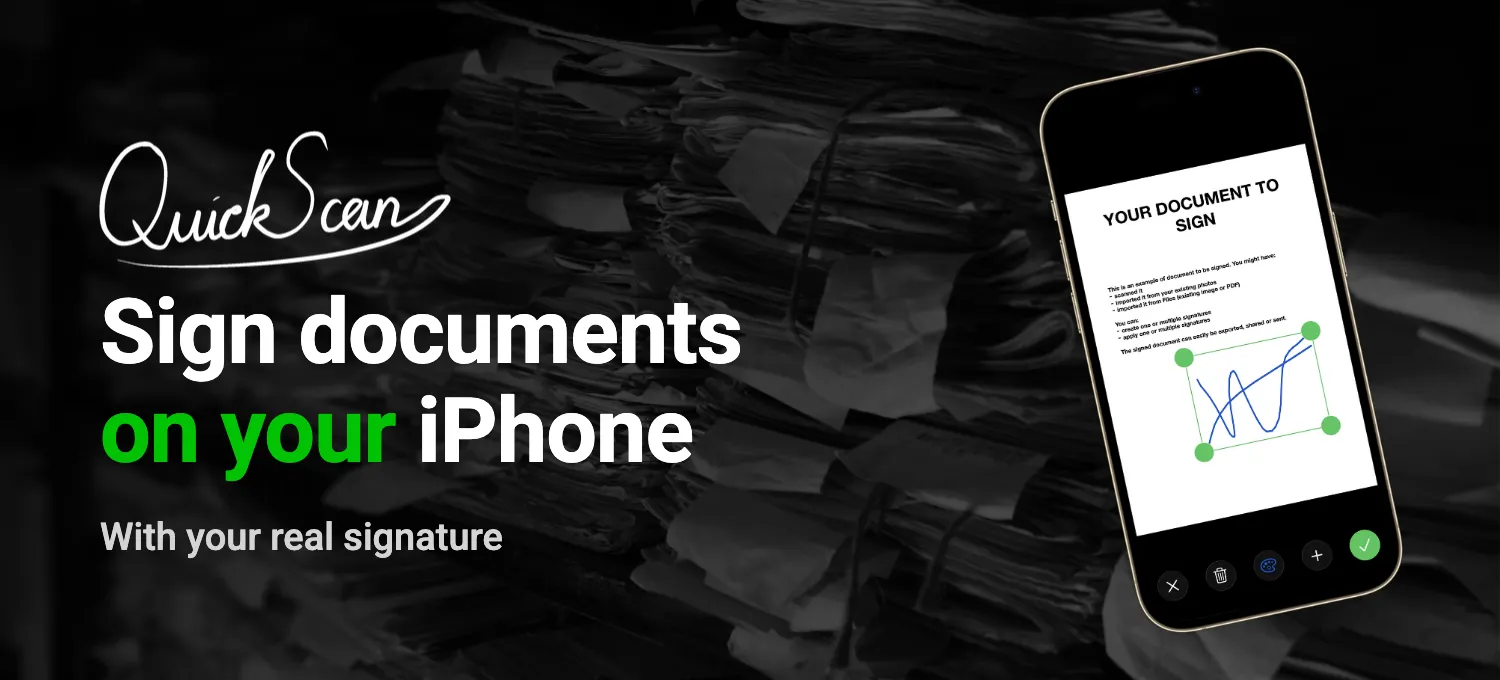
Like Apple's tools, QuickScan lets you draw your signature with your finger or an Apple Pencil. But you can also sign a sheet of paper and take a photo of it, or import your signature from an image or a PDF. QuickScan removes the background and lets you pick the color, so it can be blue like a ballpoint pen. On the page, it looks as if you'd signed it by hand.
Your signatures stay private. QuickScan can ask for Face ID or Touch ID before it shows your documents and signatures, so nobody can use your signature just because your iPhone was lying unlocked on the table.
Signing itself takes a few taps. Scan the page or import the PDF from Files, tap the page, then the signature button, pick your signature, and move and resize it. Tap OK, and it's done. You can put several signatures on one page, say your signature and your initials, and change them later. The help page on signatures walks through each step.
Then export the document to an Export Favorite. QuickScan names the PDF the way you've set it up and sends it where it belongs, by email, to iCloud Drive or straight into Paperless-ngx. If the document has personal details on it, QuickScan can also protect the PDF with a password.
For personal use, QuickScan is free. There are no ads and no subscription, and you don't need an account. Your documents stay on your iPhone until you send them somewhere yourself.

Continue reading:
- How to Make a PDF on iPhone (and Convert Photos to PDF)
- How to Scan Documents on iPhone (and a Faster Way)
- QuickScan vs CamScanner: Which Document Scanner Should You Use on iPhone?
Sources: Apple Support, Fill out forms, sign documents, and create signatures on iPhone and Fill out and sign PDF forms in Preview on iPhone (checked November 2026).