
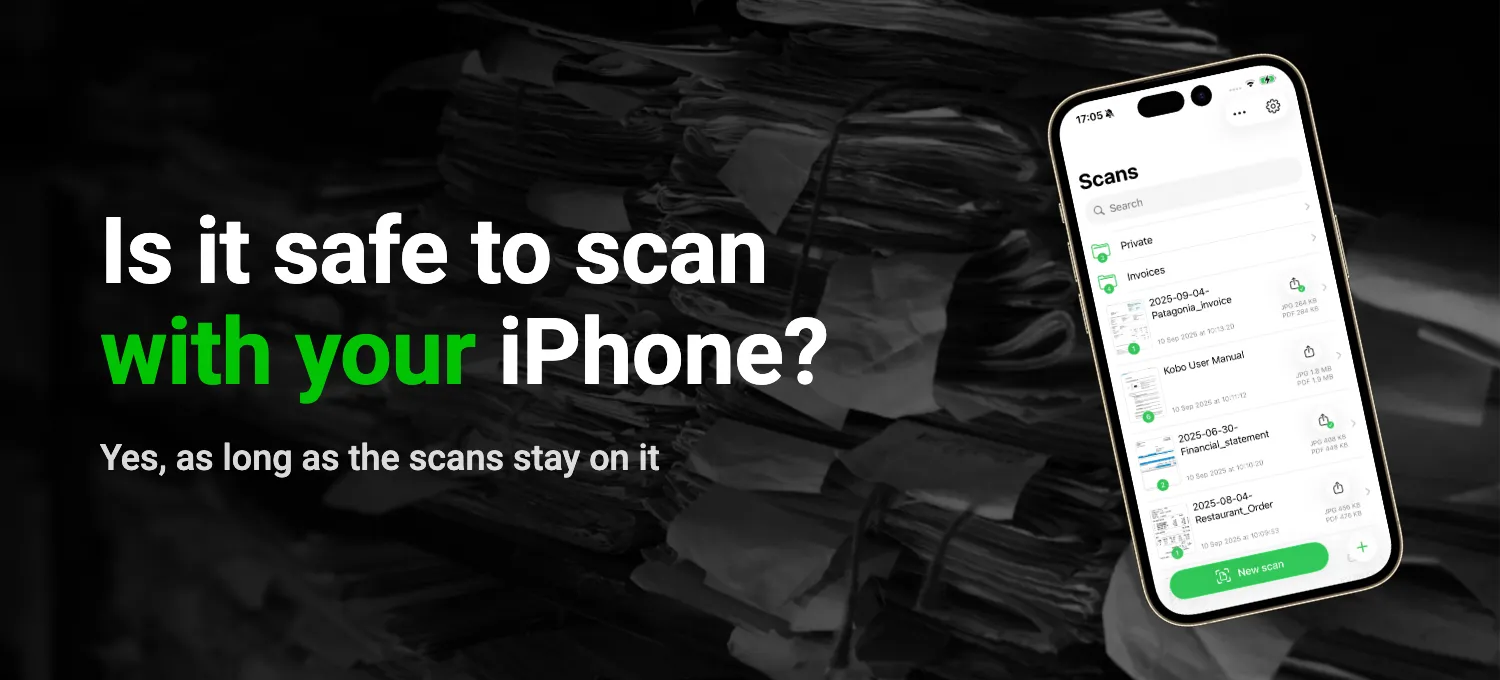
Think about the last few things you scanned with your phone. Maybe a passport page for a visa application, or last year's tax return for your accountant. Those are pages you'd never post anywhere, and yet most of us point a phone at them without a second thought.
Scanning them with your iPhone is safe as long as the scans stay on it. The question is what the app does after you take the picture. Does it keep the pages on your phone, or send them somewhere?
When your pages go to a server
Online storage and share links always put your pages on a company's server. AI features that summarize or name a document often do too, and so does text recognition (OCR).
That last one deserves a closer look. It's how a scan becomes searchable, and it means reading every word on the page, your passport number included. When that happens on a server, your passport is read there, not on your phone, and a copy of it ends up on a computer you'll never see.
What happens to that copy is no longer up to you alone. It depends on how well the company protects its servers, who can get into them, how long it keeps your files and whether it changes its terms of use. Deleting the scan on your phone doesn't tell you whether that copy is gone too.
How to check what an app does with your scans
You can check some of this yourself, in the App Store and on your iPhone.
Open the app's page in the App Store and scroll down to App Privacy. "Data Not Collected" means the developer says the app collects nothing.
Otherwise you'll see headings such as "Data Used to Track You," "Data Linked to You" or "Data Not Linked to You," each followed by a list. Look for User Content under any of them. Apple uses that term for your photos and anything else you create in an app, so it can include your scans.
The label has two limits. First, it's the developer's own statement, and Apple says so right there: "This information has not been verified by Apple."
Second, it only covers data the developer keeps. By Apple's definition, data counts as collected when it leaves the phone and can be accessed for longer than it takes to handle the request in real time. So an app can send a page to a server, process it there, delete it right away and still say "Data Not Collected."
Airplane Mode lets you check that part yourself. Turn it on, make sure Wi-Fi is off too, then scan a page and run text recognition. If you get the text, it was recognized on your iPhone. If it won't work without a connection, your page is most likely going to a server.
That only shows where the work happens, not what the app sends once you're back online. For that, go to Settings, tap Privacy & Security, then App Privacy Report, and turn it on. From then on, it lists the internet domains each app has contacted in the past seven days. It tells you where an app connected, not what it sent.
Your scans can also leave the phone without any app sending them, inside your iCloud Backup. If it's on, the backup includes your apps' data, and with standard data protection Apple holds the encryption keys. Turn on Advanced Data Protection (Settings, your name, then iCloud) and the backup is end-to-end encrypted, so only your trusted devices can read it.
What QuickScan does with your scans
QuickScan recognizes text in 27 languages, right on your iPhone or iPad. Every word on your passport or tax return is read on the phone, not on a server. QuickScan doesn't have one at all.
The rest of its work happens on your iPhone too, whether it's cleaning up a page or finding a word in all your scans. Even when QuickScan names a file after the document's date or title, Apple Intelligence picks those out on the device.
You can put it through the Airplane Mode test yourself. Scanning and text recognition work offline, and only sending a file somewhere needs a connection. Its App Store label says "Data Not Collected," and there's no account to create and no analytics.
QuickScan only sends a scan off your phone when you export it, to wherever you choose, whether that's an email, iCloud Drive or another cloud service. If you'd rather your scans never touch someone else's server, export straight to a NAS or SMB share at home, or to your own WebDAV, Nextcloud or Paperless-ngx server.
On the phone itself, QuickScan can ask for Face ID or Touch ID before it shows your documents and signatures, and you decide how soon it asks again. If a scan goes out by email, you can put a password on the PDF when you export it.
QuickScan is free for personal use, with no ads and no subscription. Your passport scan stays with you until you decide to send it somewhere.

Continue reading:
Sources: Apple Developer, App Privacy Details; Apple Support, About App Privacy Report, What does iCloud back up? and iCloud data security overview; QuickScan's privacy policy (checked November 2026).